How to convert a bank statement to CSV without uploading it
Published 16 September 2026 · by Tekiba
Yes: a browser can already open a file from your disk and read the text inside a PDF, so a converter built that way has nothing left to ask a server for. That covers a statement downloaded from online banking, which holds real text; an image-only scan needs OCR, which LedgerDrop does not do. The reason is duller than it sounds, and the whole job fits in the tab.
Why a browser can do this on its own
Reading a local file and uploading one are separate actions, and a page can do the first without the second: the bytes land in the tab's memory, and the page's own code decides what happens next. The parsing falls to pdf.js, Mozilla's PDF reader — the engine Firefox uses to display PDFs. And a text-based PDF is not an image of a page: it is a list of strings with coordinates, so turning one into a table is mostly geometry.
Running locally is not the same as sending nothing, though: code in a tab can read a file and still transmit whatever it likes. This site does send something — usage counters to Google Analytics, carrying no part of your statement. So “without uploading” covers two claims, where the code runs and what it sends, and you can check both: is it safe to upload bank statements? shows how.
The three steps
-
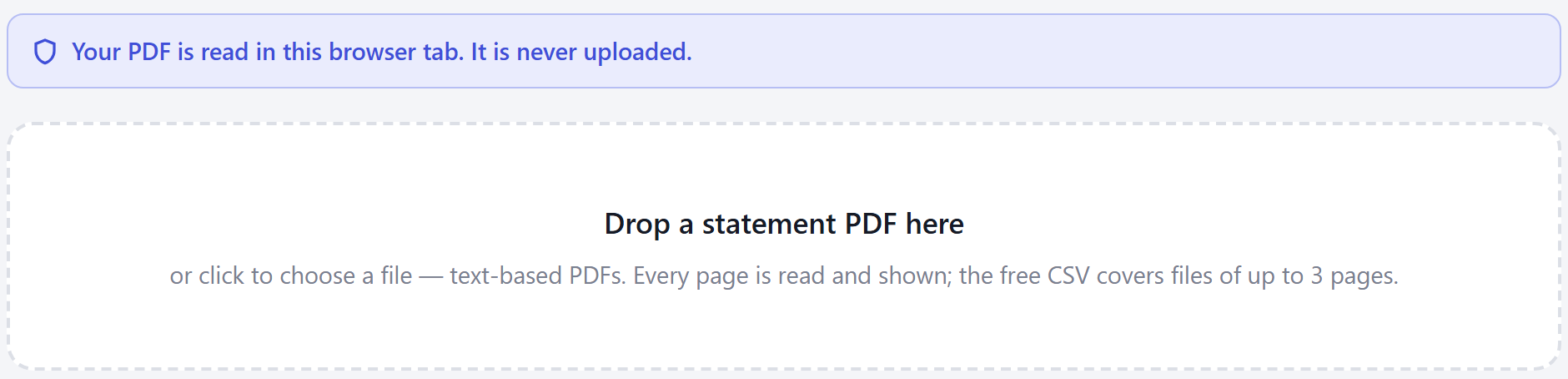
Drop the PDF on the page. Open the converter and drag the statement in. It takes text-based PDFs of any length: every page is read, and the table and the balance check below cover all of them, free. The free version writes the CSV itself for files of up to three pages.
-
Read the balance check before the table. It adds up every transaction it extracted and compares the total against the opening and closing balances printed on the statement. When the three agree, the rows account for the whole movement between those balances — which is what catches the ordinary failure, a row quietly going missing. It is a net total, not a row-by-row audit: two errors of the same size in opposite directions would cancel and still pass.
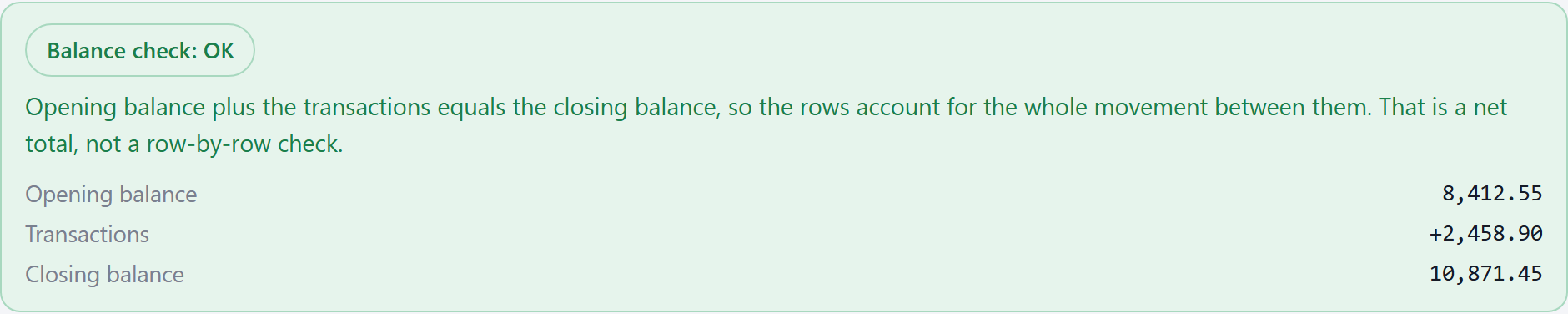
The statement here is fictional, built by the script that takes these screenshots; no real statement is used anywhere on this site. -
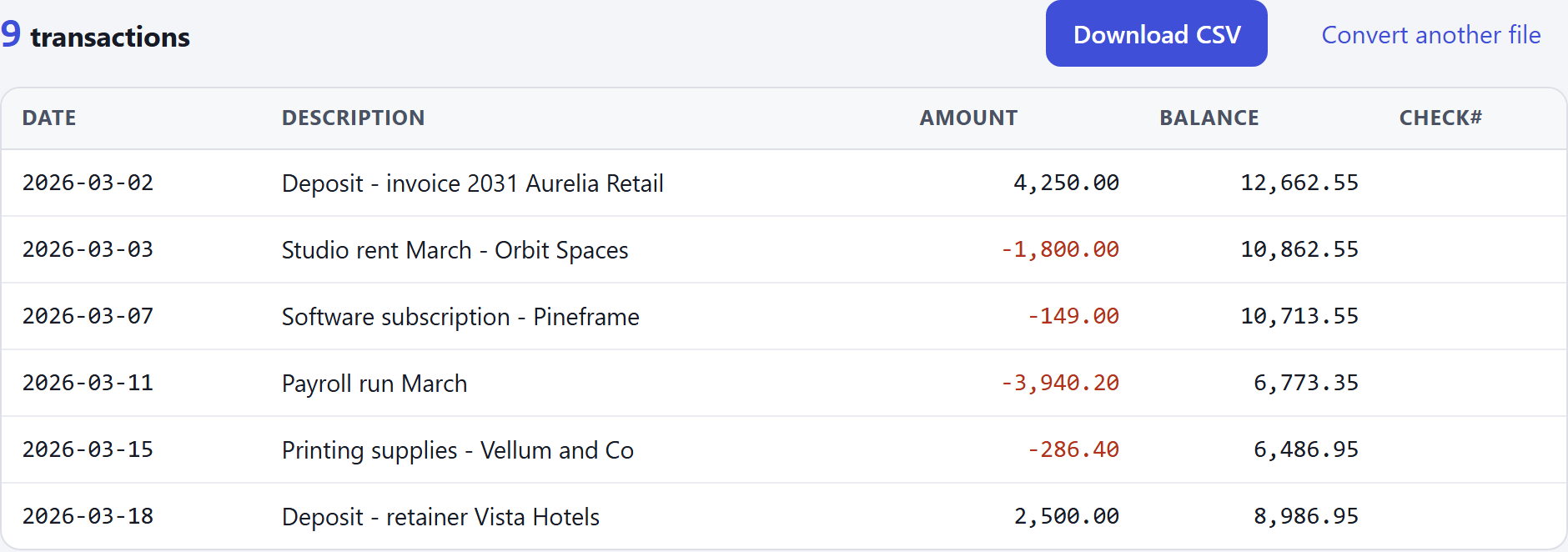
Check a few rows, then download. The preview lists the first 200 transactions; the CSV holds all of them. It is assembled in the tab and handed to your browser's downloads — what is in it, and what your accounting app will want, is below.
Convert a statement → Free, no account.
What it will not do
- Scans and photographs of statements
- An image-only scan holds no text, and there is no OCR here to make some. LedgerDrop looks for a text layer and stops with a message rather than returning an empty table. Three ways to tell which kind you have takes a minute and settles it before you start. One edge worth knowing: that check is made across the file as a whole, so a statement whose first page is text and whose rest are images can pass it and convert, with those pages' rows simply absent — the case the balance check is there to catch, and usually does.
- Write a CSV for more than three pages, or for more than one file
- A product limit rather than a technical one, and it is a limit on the file and not on what you can see: a statement of any length is read in full, and the table and the balance check on screen cover all of it. What the free version will not do is write the CSV. LedgerDrop Pro ($39, one payment) removes the page limit and takes several statements at once. There is deliberately no partial CSV of a longer statement — a bank-statement CSV that is quietly short is the failure this page spends most of its length warning about.
- Layouts whose headings it does not recognise
- There are no per-bank templates. The parser reads the geometry of the table plus a vocabulary of English headings — date, description, withdrawal, balance and their variants — so a statement in another language often comes back as “no transaction table found”. You can map the columns by hand at that point: it lists the ones it found from the layout alone, and naming the date and the amount will often rebuild the table — often, since those candidates are themselves guesses and the rows still have to hold a date and an amount it can read. The balance check is narrower still, looking for the printed words opening, beginning or previous balance and ending, closing or new balance; where it cannot find both, it reports “unknown”.
- Amounts printed without decimals
- A number counts as money only with two decimal places or a currency symbol.
12,000.00and¥12,000are amounts; a bare12,000is not. That is what keeps account numbers, cheque numbers, card digits and years out of the amount column — but a statement printing whole currency units with no symbol will not read correctly. - Dates and card signs, which are inferred
03/04/2026is 3 April in London and 4 March in Chicago; the order is inferred from the whole set of dates, and the line under the row count always says which way it was read. Credit cards are the other inference — a card prints a purchase as a positive number, because it increases what you owe, so the signs are flipped to the cash-flow convention when the page reads like a card statement and the rows whose printed sign contradicts their own heading clearly outnumber those that agree with it. That flip is named in the same line when it happens. Either can be overridden under “Columns and date format”.
When the numbers do not add up
A mismatch comes with a Difference, exact to the cent: how far the extracted total is from carrying the opening balance to the closing one. Both directions are tried — a bank account, where transactions add to the balance, and a card, where they subtract — and you see the nearer. Its size is a clue rather than a verdict.
- It matches one transaction's amount. Look for a row that size: likeliest is one missed, or read as something else.
- It is twice a transaction's amount. That can mean the row was carried with the wrong sign — money in where it was money out. Check it against the PDF before changing anything: the arithmetic also lands there when a different row is missing entirely, so a green check after a sign change is not proof you fixed the right thing.
- The statement is a credit card. The sign convention is the thing to try. Amount signs → Reverse them applies the flip when it did not happen on its own; Use the signs as printed is what undoes one that should not have happened. They are different buttons, and “Reverse them” will not undo an automatic flip.
- It is roughly a page's worth of activity. Check whether one page of the file is a scan.
Checking a converted CSV for errors works through those causes with what each one does to the extraction, and what the check cannot see at all.
“Balance check: unknown” is not a fault: no pair of printed opening and closing balances was found, so there is nothing to compare against. Where the statement printed a running balance, the CSV carries it, and the last row's figure — or the first, if the statement runs newest first — is worth putting next to the statement's own closing figure before you import.
Questions
Can I convert a bank statement to CSV offline?
Almost, with one request in the way. The page and the parsing code arrive when you open the site, but pdf.js fetches its background worker the first time you convert rather than at page load — so a browser that has never converted anything here still needs the network for that one file. Convert once, then disconnect: after that it runs with the network off, for as long as your browser keeps that file cached.
How do I tell whether my PDF has a text layer?
Open it in any PDF viewer and try to select a line of the table. A selection box over a picture means there is no text and LedgerDrop cannot read it. Text that highlights is necessary but not sufficient: the layout still has to be one the parser can follow, and a scan put through OCR elsewhere will highlight too, with whatever mistakes the recognition made baked in. Where the PDF was generated straight from the bank's own data — which is what online banking normally gives you, rather than a scanner — its digits were never inferred from their shapes, so that particular source of error is gone.
Will the CSV import into Excel, GnuCash or my bookkeeping app?
It is written to RFC 4180, the CSV specification those tools read: dates as YYYY-MM-DD, one signed Amount column, a Balance column wherever the statement printed a running balance, and a UTF-8 byte-order mark so Excel does not mangle non-ASCII descriptions. That covers the file; each app still has its own import step, and one wanting separate money-in and money-out columns needs that split made there.
A bank statement lists nearly everything you paid for, so where the parsing happens is worth a minute before you drag the file in — is it safe to upload bank statements? covers what to look for across tools generally. If the months you want are older than your bank will export, how far back you can download bank transactions as CSV covers where to find them. If a general converter has already made a mess of one, why “PDF to Excel” makes bank statements messy explains what moved. Otherwise, convert a statement or go back to the home page.